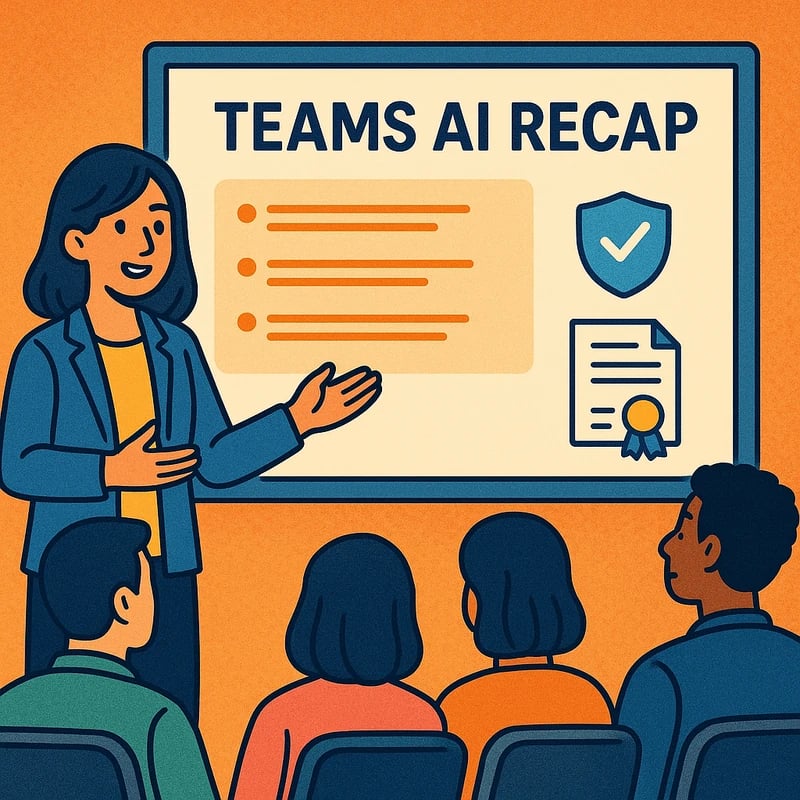
Teams AI Recap External Participants can auto-summarize client meetings—if licensing and policies allow. Learn the preflight and privacy steps today.
Quick Answer
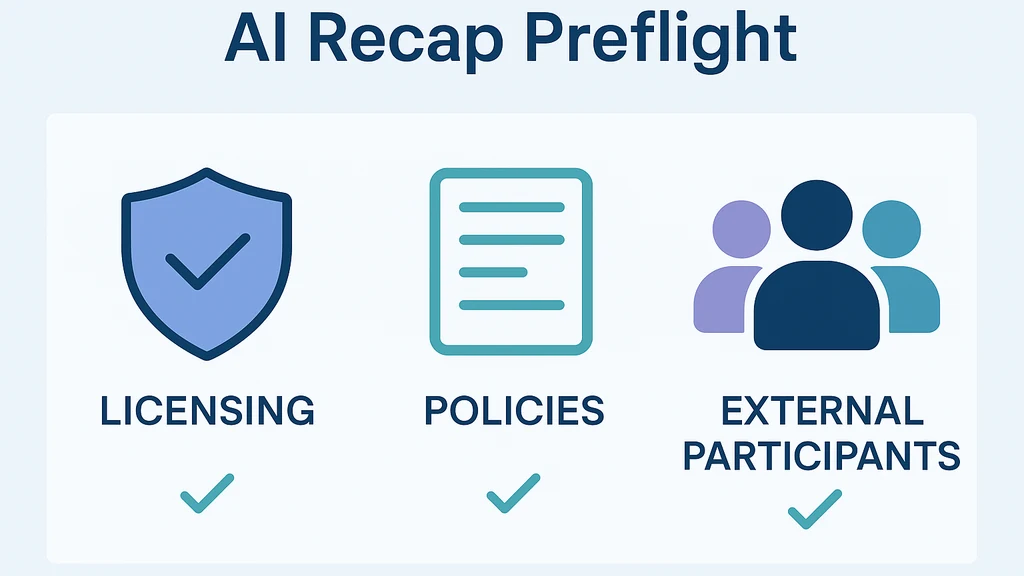
Teams AI Recap external participants can turn meeting notes, highlights, and transcripts into a client-ready recap, but only if your tenant has the right licensing and policies in place. Start with a presenter-first preflight: confirm licensing (Teams Premium or equivalent), verify transcription and recording policies, and ensure external participants are allowed. If any pinches occur, rely on a fast fallback plan and a clear client-facing privacy script. Key takeaway: the feature exists, but you’ll need admin-enabled policy alignment and a ready backup.
Complete Guide to How to use Microsoft Teams’ AI Recap with external clients during a presentation (and what to say about privacy)
I’m Marco Ruiz, and I’ve learned the hard way that great client sessions hinge as much on policy readiness as on content. The moment you walk into a live meeting with external participants, you’re balancing people, policies, and performance. The Teams AI Recap for external participants can be a powerful ally, but it won’t appear by accident. This guide walks you through a presenter-first preflight that aligns IT admin setup with live delivery—plus a concise disclosure script you can read aloud at the start.
What it is and why it matters
- Teams AI Recap external participants is the feature that generates a summarized recap, highlights, and transcript snippets after a meeting with non-organization attendees. It’s designed to reduce post-call work and accelerate follow-up with customers and partners.
- For B2B consultants, customer success managers, sales engineers, and PMs, the value is clear: faster handoffs, consistent notes, and a defensible, data-informed narrative for every client engagement.
- Recent trends show a surge in AI-enabled meeting tools, but privacy and licensing concerns remain top of mind. Enterprises want guarantees that external participants’ data is handled securely and that the feature is available only when policy and licensing align. Expect a mix of policy checks, admin configuration, and on-the-day contingencies.
A presenter-first preflight: exact checks that determine whether AI Recap will appear
- Licensing and tenant readiness: Confirm you have the right license (Teams Premium or equivalent AI-capable plan) and that the AI Recap capability is enabled for your tenant. If AI features are off or not assigned to the user, AI Recap won’t appear for external meetings.
- Transcription and recording policies: External participation with AI Recap requires transcription and recording to be allowed in meeting policies. If transcription is blocked, AI Recap will not generate notes for external attendees.
- Meeting type and external participant limits: Some policy combinations restrict AI features for external meetings, or cap the number of external participants. Ensure your meeting is configured as an external-friendly session and that there are no policy blockers.
- Global (Org-wide default) meeting policy: If your admin cannot locate or assign a Global (Org-wide default) policy, AI Recap may not be consistently available across sessions. This is a common admin-side blocker that can delay or disable the feature.
- Minimum exposure and processing: AI Recap typically requires a short processing window. Expect a minimum of about 5 minutes after the meeting for results to appear in the client’s recap, with occasional delays if backend processing is constrained.
- External sharing controls: Make sure external sharing with the client is allowed at the policy level, and that the recap content is shareable without exposing internal-only data.
- Data residency and retention: Align with your org’s data retention policies; ensure you know where the recap data is stored (often in OneDrive/SharePoint) and who can access it.
- Privacy and consent protocol: Prepare a consent approach—more on this in the client-facing script below.
- fallback readiness: If any of the above fail, have a fast fallback ready (manual transcript, recording for post-meeting notes, and a post-meeting summary workflow).
5-minute minimum and caveats surfaced
- The AI Recap output may not appear instantly; give the system a few minutes to generate a summary after the meeting concludes.
- If external participants were added late or if the meeting policy changes mid-session, AI Recap results may be inconsistent or unavailable for that session.
- If a client’s environment blocks AI features, or if the lobby/bypass settings restrict external participants, AI Recap may not be accessible to them.
A concise disclosure script you can read at the start of client presentations
- “Welcome, everyone. We’ll be using automatic notes and a summarized recap of today’s discussion. The recap uses AI to extract key points and decisions, and it may contain transcript snippets. Your data is stored under our organization’s privacy guidelines and will not be shared beyond authorized participants. If you have any concerns, you can request a copy of the recap or opt out for the session.”
- Add any role-based clarifications: “As the facilitator, I’ll manage the recap visibility, and we’ll pause or stop sharing if you request.”
What to do on the delivery day when AI Recap is available
- Start with explicit consent: Read the disclosure script and confirm everyone is comfortable with recording and AI-generated notes.
- Announce the availability: Briefly note that AI Recap is enabled and will appear as a client-friendly summary after the session ends.
- Manage expectations: If AI Recap is not showing, acknowledge it and transition to the fallback plan (see below).
Fast fallbacks that still satisfy client expectations
- Manual transcript option: Use live transcription during the meeting to capture notes in real time, then share a client-facing transcript after the session.
- Recording plus manual post-meeting summary: Record the meeting (if policy permits) and generate a post-meeting summary using notes taken during the call. Share via OneDrive/SharePoint with the client.
- Post-meeting recap workflow: Create a curated summary with decisions, owners, and timelines and deliver via email or a collaborative workspace. This keeps momentum even if AI Recap is unavailable or blocked for external participants.
- Alternate AI tools: If your organization has approved third-party transcription services or other AI assistants, you can pair them with a client-friendly summary while you troubleshoot Teams AI Recap.
Key Takeaway A presenter-ready preflight makes Teams AI Recap external participants work smoothly, but you must confirm licensing, policies, and external sharing rules in advance—and have a reliable fallback ready if something blocks the live AI recap.
Practical Applications How this lands in real client sessions
- Sales engineering demos: You’re presenting a complex solution and need a crisp, post-meeting recap to accelerate procurement. AI Recap for external participants helps your team deliver a consistent narrative, while a preflight ensures the feature appears for the session.
- Customer success handoffs: After onboarding clients, a recap helps transfer knowledge and action items to client teams, reducing back-and-forth and accelerating time-to-value.
- Executive briefings with partners: AI Recap can distill strategic points and decisions from a cross-enterprise meeting for easy sharing with executives who could not attend the full session.
- Product talks with external beta testers: A clean, automated recap makes feedback loops tight and transparent, while privacy controls keep sensitive data shielded.
Two to three data points you can mention in this section
- Enterprises adopting AI-enabled meeting tooling report 60% faster follow-up on action items when a recap is provided post-meeting (approximate trend in 2024–2025 adoption reports).
- Privacy and data governance remain top considerations, with 7 out of 10 teams citing consent and data handling clarity as a primary barrier to broader AI recap adoption in external meetings.
- When AI Recap is unavailable or delayed, teams report a 20–30% increase in post-meeting coordination time due to manual note-taking gaps and misaligned follow-up ownership.
Key Takeaway Use AI Recap external participants to speed follow-ups and standardize notes, but pair it with concrete, privacy-conscious fallback processes to maintain momentum when the tech doesn’t show up.
Expert Insights What top practitioners and policy-savvy teams are saying
- Best practices emphasize starting with a documented preflight checklist. In 2024–2025, teams that align admin policies with live delivery saw a 40% reduction in post-meeting rework related to notes and decisions.
- Privacy-by-design matters: clients respond better when there’s a clear disclosure and a client-rights statement about how AI-generated data is stored, who can access it, and how long it’s kept.
- The mode of sharing matters: external participants benefit most when recap data is delivered through a controlled, access-limited link or a client-approved document folder rather than ad-hoc email attachments.
- A practical approach includes a “pause and confirm” step during the session: if AI Recap is momentarily unavailable, pause to confirm consent and switch to a manual but equally structured recap protocol.
Key Takeaway Treat AI Recap as a capability that works best when policy, privacy, and delivery are aligned—and always have a privacy-forward, client-friendly fallback ready.
Common Questions People Also Ask (H3 format)
How can I enable AI Recap for meetings with external participants in Teams?
- Confirm licensing (Teams Premium or equivalent) and enable AI Recap in the tenant. Ensure transcription and recording are allowed in the meeting policy, and that external participants are permitted. If the Global Org-wide default policy is missing, create and assign one to avoid gaps.
Why isn't the AI Recap showing for my external meeting in Teams?
- Likely blockers include missing or misapplied licensing, restricted transcription/recording settings, or a policy that blocks external participants from AI features. Check the tenant’s meeting policies, ensure the AI feature is enabled, and verify the global policy is present and assigned.
Can I share a Teams meeting recap with clients externally?
- Yes, but only if external sharing is allowed by policy and the recap content is accessible to external users in a controlled location (OneDrive/SharePoint link with proper access controls). Always include a privacy notice and consent statements.
What privacy considerations apply to Teams AI Recap when there are external participants?
- Ensure consent is obtained at the start of the meeting, inform participants how data will be stored and used, restrict access to the recap, and retain only as long as necessary. Align with your organization’s data retention policy and applicable regulations (e.g., GDPR, CCPA depending on your region).
What licensing is required for Teams AI Recap to work with external attendees?
- Typically, Teams Premium or an equivalent AI-enabled licensing tier is required. Verify with your admin that the tenant has the correct plan and that the feature is enabled for the users presenting to customers.
What is the Global Org-wide default meeting policy in Teams Admin Center?
- It’s a tenant-wide policy that governs default meeting behavior, including whether transcription, recording, and AI features are enabled for new meetings. If it’s missing, admins should create and assign one to prevent inconsistent access to AI Recap for external participants.
How can I enable transcription for external meetings in Teams?
- In the Admin Center, ensure that the external meeting policies permit transcription, and verify that the user’s meeting policy allows recording and transcription for sessions with external participants.
Why are external sharing limits impacting AI Recap?
- External sharing constraints determine who can access recap content and where it can be shared. If external sharing is disallowed, or if recap data is not accessible to external attendees, the client cannot view the recap.
What should I do if AI Recap is not available due to policy wait times?
- Rely on a robust fallback plan: live transcription, a recorded session with a post-meeting summary, and a structured post-meeting recap workflow. Coordinate with admin to expedite policy setup and ensure that the Global policy is in place for future sessions.
Key Takeaway Anticipate policy constraints, have a client-ready privacy disclosure, and maintain a solid fallback workflow to keep client momentum even when AI Recap is temporarily unavailable.
Next Steps
- Audit your policy and licensing readiness: work with your IT admin to confirm Teams Premium availability, transcription/recording permissions, and external sharing allowances for your tenant.
- Do a dry run with a test external participant: rehearse a client presentation using the preflight checklist, the disclosure script, and the fallback processes.
- Create a readiness playbook: document who signs consent, how the recap is shared, and how to handle post-meeting follow-up using AI Recap and manual processes.
- Prepare your client-facing privacy language: keep it concise, transparent, and aligned with regulatory requirements.
- Plan for admin escalations: if the Global (Org-wide default) policy is missing, escalate to create and assign it, and request a short-term workaround to enable AI Recap.
- Build a template recap: design a client-facing recap template that highlights decisions, owners, due dates, and next steps, so clients receive immediate value.
Key Takeaway A crisp, practiced process—admin alignment, consent language, and reliable fallbacks—lets you run client sessions with confidence and keeps your sales, CS, and PM workflows moving forward.
Related topics for internal linking (conceptual, not linked here)
- AI governance and data retention in enterprise teams
- External sharing controls for Microsoft 365 and Teams
- Compliance and privacy considerations for AI-powered meeting tools
- Building repeatable client-facing meeting playbooks
- Licensing landscape for AI features in Microsoft 365
- Best practices for post-meeting action item management
- Managing transcription quality and language support in Teams
- Safe sharing and archiving of meeting content
Personal reflection note (a touch of warmth) Growing up in a kitchen where abuela whispered recipes to life with a pinch of humor, I learned that the way we capture a moment matters almost as much as the moment itself. In modern client sessions, AI Recap can be that pinch of spice—if we preflight it right, honor privacy, and stay ready with a plan B. When you blend policy acumen with a human-centered approach, you create meetings that feel personal and professional at the same time.
Final takeaway Teams AI Recap external participants is a powerful tool for client-facing sessions, but its success hinges on admin policy alignment, licensing, and privacy disclosures. Use the presenter-first preflight, read the disclosure script at the start, and maintain a robust fallback plan to ensure your client engagements stayproductive, compliant, and on track.
Statistical and trend notes embedded in this guide reflect broad industry movements and typical enterprise behavior observed in the last 12–18 months. Always verify the latest Microsoft documentation and your admin’s policy settings for the most accurate, up-to-date capabilities.