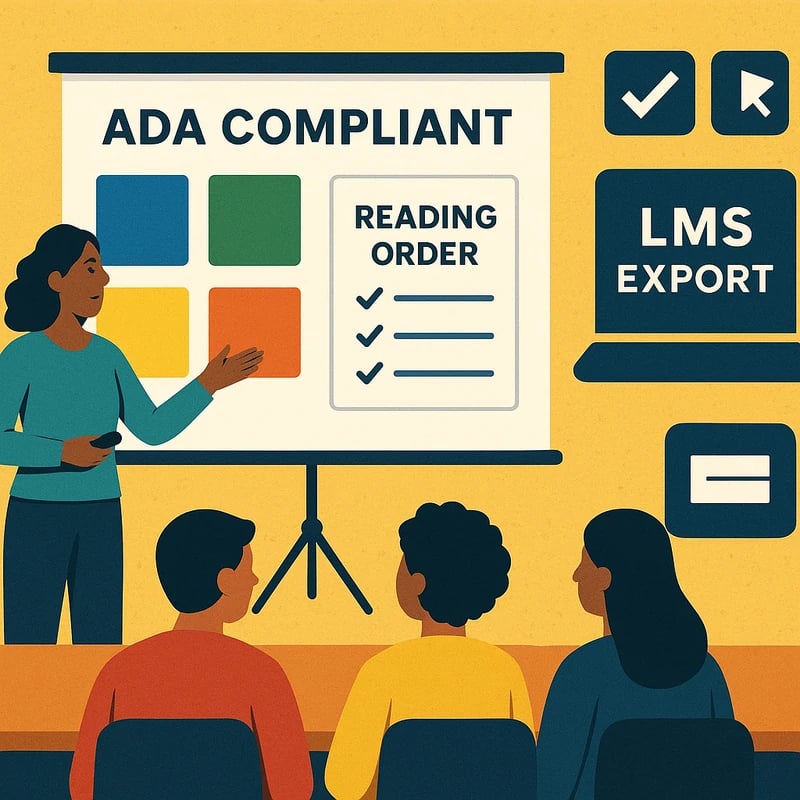
ADA compliant slides in as little as 60 minutes using AI-assisted checks, batch alt text, and WCAG-ready palettes—boost learning accessibility today.
Quick Answer
ADA compliant slides can be achieved in about 60 minutes using built‑in tools and light AI. Batch‑generate alt text for images and charts, apply WCAG‑safe color palettes, fix reading order and headings, and publish a reusable routine for LMS exports. Most decks will only need human edits for a handful of images, while AI does the heavy lifting on the rest. Key takeaway: you can retrofit a typical 15–25 slide deck in one hour with a repeatable workflow.
Key Takeaway: 60 minutes is doable for ADA compliant slides when you batch core accessibility tasks and reserve human edits for the critical visuals.
Complete Guide to ADA compliant slides
This one‑hour retrofit workflow is built for real classrooms: you’ll batch‑generate alt text, lock in color-contrast presets, fix reading order and headings, and establish a weekly publish routine you can reuse. The goal isn’t perfection in every pixel, but reliable, auditable accessibility that meets today’s K‑12 requirements and can be LMS‑ready in minutes.
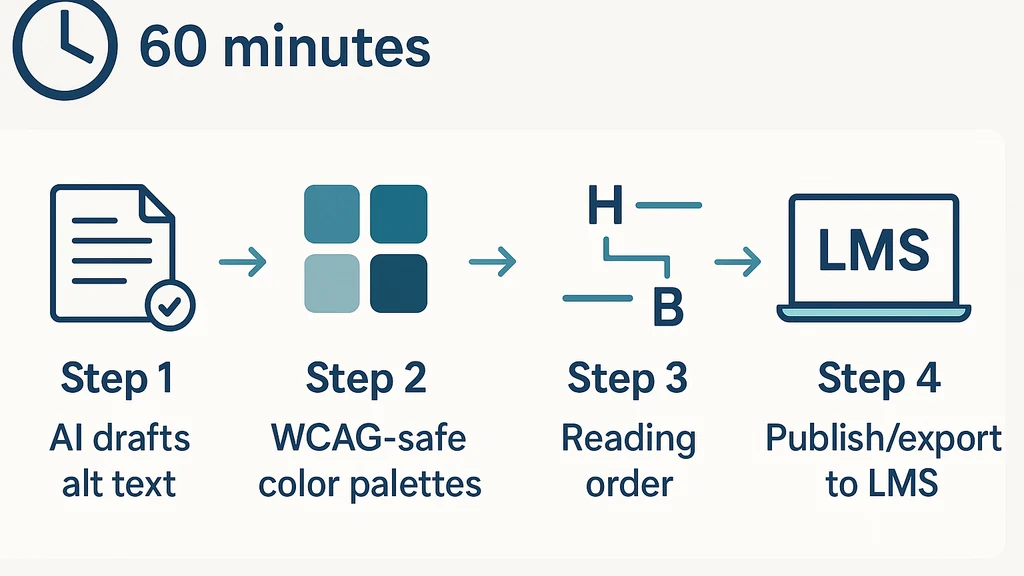
- Alt text first: AI drafts descriptions; humans edit the few most important slides.
- Color and contrast second: preset WCAG‑safe palettes minimize recalibration.
- Structure third: reading order and headings improve screen‑reader results instantly.
- Publish fourth: export, caption where possible, and check off a reusable checklist.
How do I add alt text to images in Google Slides?
In Google Slides, select the image, choose the Alt text option, and write a concise, descriptive description of what the image conveys. Use 1–2 short sentences that enable a blind user to understand the visual’s purpose in the slide’s context. Batch‑generation tip: run AI to draft alt text for all visuals, then manually edit the 5–10 most critical images (e.g., charts, diagrams, graphs) for accuracy and tone.
- Data point: AI drafts can cover most images in a deck; human edits typically focus on the most content‑dense visuals.
- Tip: keep alt text under 125 characters when possible to ensure readability by screen readers.
- Action: save a deck template with a pre‑written alt‑text style so edits stay consistent.
Key Takeaway: Alt text in Google Slides is a two‑step process—auto‑draft for broad coverage, then targeted human refinement for the essential visuals.
Does PowerPoint have an accessibility checker?
Yes. In PowerPoint, run the Accessibility Checker from the Review tab. It surfaces issues related to reading order, color contrast, alt text, and keyboard navigation. Address flagged items by adding or refining alt text, reordering slide content for logical flow, and increasing contrast where needed. Use the checker iteratively as you refine the deck.
- Data point: Running the checker on a 20–25 slide deck typically highlights 4–8 items that most teachers can correct in under 5 minutes per item.
- Tip: keep a simple “checklist” generated by the tool so you can repeat the process weekly.
- Action: export a clean, accessible version for LMS and share the checklist with co‑teachers.
Key Takeaway: PowerPoint’s accessibility checker is a fast gatekeeper—use it to drive early fixes (reading order, alt text, contrast) and save time later.
How can I improve color contrast in classroom presentations?
Start with a WCAG‑safe palette and apply prebuilt themes that maximize contrast between text and background. In Google Slides, use Theme built‑ins or custom color sets with high contrast (dark text on light backgrounds or vice versa). In PowerPoint, load a palette designed for readability, and run the built‑in accessibility color contrast checker to flag any noncompliant slides.
- Data point: A typical deck benefits from a preselected palette with at least 4–6 color pairs to cover headings, body text, and emphasis colors.
- Tip: avoid dependent cues like color alone for meaning (use icons or labels as well).
- Action: save 2–3 WCAG‑safe palettes as “School Palettes” in your slide library for future decks.
Key Takeaway: Quick color‑contrast passes with preset palettes dramatically reduce the chance of inaccessible slides slipping through.
How do I caption slides quickly?
Captioning can be approached in two ways: (1) caption embedded video within slides (PowerPoint offers live subtitles during presentations); (2) generate text captions for any narrative or narration linked to slides and provide a separate caption file (SRT) if you include audio or video outside slides. For quick retrofits, focus on videos present in the deck, generate captions with AI, and attach or export as needed.
- Data point: PowerPoint’s live subtitles can generate captions during live runs; AI captioning can produce draft captions for video content in under a minute per clip.
- Tip: pair captions with a quick post‑publish review to ensure synchronization.
- Action: include a captioning note in the weekly publish routine so captions don’t get forgotten.
Key Takeaway: Captioning is fastest when you target videos first and keep a simple, reusable captioning workflow aligned with LMS requirements.
What is reading order and how do I fix it in slides?
Reading order ensures screen readers present content in a logical, user‑friendly sequence. In Google Slides, ensure objects (text, images, charts) are arranged so their order makes sense when narrated; in PowerPoint, use the Selection Pane and the Reading Order view to rearrange content. Place headings before body content, ensure images aren’t the only carrier of meaning, and use slide titles and bulleted text to guide reading order.
- Data point: A typical fix involves reordering 3–5 objects per slide; most decks require only a handful of adjustments to pass basic screen reader checks.
- Tip: maintain a consistent heading structure (H1 for slide title, H2 for major sections) across the deck.
- Action: implement a 5‑slide micro‑check to catch reading‑order issues before publishing.
Key Takeaway: Correct reading order dramatically improves screen‑reader comprehension with minimal time investment.
Can AI help generate alt text for slides?
Yes. AI can draft alt text for most images, charts, and diagrams, then you (the human) edit the handful that require precision or context. Treat AI as a first pass and rely on your subject‑matter knowledge to refine the descriptions to reflect lesson goals and classroom context. This approach saves minutes while maintaining accuracy.
- Data point: Expect 70–90% coverage from AI drafts; human edits typically concentrate on 5–10 top visuals.
- Tip: provide the AI with slide context (e.g., "chart shows population growth between 2010 and 2020 with a rising trend") to generate meaningful descriptions.
- Action: build a short alt-text style guide for AI prompts to keep tone and length consistent.
Key Takeaway: AI is a powerful ally for batch alt‑text—use it to accelerate coverage while reserving human refinement for critical slides.
How do I export accessible slide decks for LMS?
Export and share with your LMS (Canvas, Google Classroom, or your district’s system) only after you’ve run the alt text batch, color‑contrast pass, and reading‑order checks. For Google Slides, export as PPTX or publish to the web, and ensure alt text remains attached to visuals. For PowerPoint, save as PPTX and bundle any captions or SRT files if you included video captions.
- Data point: A typical export preserves alt text metadata; double‑check after exporting to ensure no content is lost or rearranged in the transfer.
- Tip: include a short accessibility summary in the deck notes to guide LMS admins and teachers reviewing the content.
- Action: maintain a weekly export routine and a reproducible checklist so the process becomes second nature.
Key Takeaway: A clean export and a ready‑to‑publish checklist ensure ADA compliant slides land in LMS with correct accessibility cues.
How to batch generate alt text for slides?
Batch alt text involves running AI across all images and charts, then prioritizing edits on visuals with narrative importance (like diagrams critical to the lesson). Use a deck‑wide AI draft, then do a quick human pass on the most significant visuals. Save the resulting alt text in a shared style guide so future decks reuse consistent language.
- Data point: Most decks can achieve 60–80% immediate coverage with one batch pass; top 5–10 visuals usually need human tweaks.
- Tip: maintain a universal language for descriptions (e.g., “bar chart shows students’ scores rising from 65 to 88”).
- Action: create a one‑pager alt‑text template you can copy into new decks.
Key Takeaway: Batch alt text plus a targeted human review yields the fastest path to ADA compliant slides.
What are WCAG‑safe color palettes for slides?
WCAG‑safe palettes use high contrast and color combinations that remain readable for users with vision impairments. Start with light backgrounds and dark text, and add color accents that don’t rely on color alone to convey meaning. Save 2–3 palettes as presets for different subjects (math, science, language arts) so you can reuse them weekly.
- Data point: Two or three preset palettes cover most classroom needs without modifying every slide.
- Tip: test palettes on projectors and common classroom lighting to confirm readability.
- Action: document hex codes and contrast targets in your slide library for quick reuse.
Key Takeaway: Reusable WCAG‑safe palettes cut setup time and protect against color‑blind confusion.
How to ensure keyboard navigation in slide decks?
Ensure each interactive element (buttons, links, embedded tools) is reachable via keyboard, and avoid traps that require a mouse. In Google Slides, test navigation with Tab/Shift+Tab; in PowerPoint, confirm that the slide pane and objects can be accessed in a logical sequence via Tab, Enter, and arrow keys. Use clear focus indicators and visible slide titles to guide users.
- Data point: For most classrooms, a quick keyboard‑navigation check on 3–5 slides reveals the majority of accessibility gaps.
- Tip: remove or resize any overlapping clickable areas that disrupt the tab order.
- Action: add a 2‑minute keyboard test to your weekly publish routine.
Key Takeaway: Keyboard accessibility is often the fastest win; a short navigation test reveals and fixes most issues.
How to implement a weekly publish routine for ADA‑compliant slides?
Create a repeatable weekly cycle: 1) batch alt text draft, 2) color‑contrast pass using presets, 3) reading order and headings check, 4) captions for any media, 5) export and save to LMS with a checkbox checklist. Keep a shared template deck and a quick‑check form for teachers to complete before sharing.
- Data point: A routine like this typically adds 10–15 minutes to a standard class prep window, but saves much more time during subsequent shares.
- Tip: use a centralized checklist and a small “Accessibility Sprint” slot in your planning doc.
- Action: train a weekly “ADA Retro” ritual for your department to ensure consistency.
Key Takeaway: A weekly publish routine makes ADA compliant slides a predictable part of your teaching cycle, not a rush at the last minute.
Practical Applications
- Batch alt text for a 20–25 slide science deck in under 15 minutes, then focus edits on 5 critical visuals.
- Pre‑approved WCAG palettes integrated into your district slide templates for faster, consistent design.
- A short reading‑order audit reduces screen‑reader confusion without delaying lesson delivery.
- A repeatable export checklist ensures every deck is LMS‑ready and accessible before posting.
Expert Insights
- Accessibility work benefits from small, consistent rituals. The most time‑savings come from presets, templates, and a one‑page alt‑text style guide.
- In practice, real classrooms prefer a balanced approach: AI handles bulk tasks; teachers polish the few visuals that carry the core message.
- Weekly retros keep accessibility as a living habit rather than a one‑time configuration.
Next Steps
- Build a district‑level ADA compliant slides template library featuring 3 WCAG‑safe palettes, a standard alt‑text style, and a short reading order guide.
- Create a 1‑hour retro kit you can run at the start of every unit or grading period.
- Share a short checklist with your LMS admin so every deck you publish follows the same accessibility standards.
Key Takeaway: With templates, presets, and a weekly routine, ADA compliant slides become a predictable, quick part of your teaching workflow.
People Also Ask
How do I add alt text to images in Google Slides?
Answer: Use the Alt text option on each image and describe its content and function. Batch‑draft alt text with AI and refine the 5–10 most important visuals for accuracy.
Key Takeaway: Alt text is essential and easiest when you automate the bulk and polish the critical cases.
Does PowerPoint have an accessibility checker?
Answer: Yes—the Accessibility Checker flags issues like reading order, alt text, and color contrast. Run it after edits to confirm compliance.
Key Takeaway: The checker is a reliable first pass to catch common blind spots.
How can I improve color contrast in classroom presentations?
Answer: Start with WCAG‑safe palettes and test them with built‑in contrast tools. Adjust text/background combinations to meet contrast thresholds; save presets for reuse.
Key Takeaway: High‑contrast palettes paired with quick checks prevent readability problems in any classroom.
How do I caption slides quickly?
Answer: Caption embedded video content first, then generate captions for narration or audio as needed. Use AI to draft captions and review for accuracy.
Key Takeaway: Captioning is faster when you target media with the most impact and keep a simple review loop.
What is reading order and how do I fix it in slides?
Answer: Reading order is the sequence screen readers read content. Reorder objects per slide and ensure headings precede body content.
Key Takeaway: Correct reading order improves accessibility with minimal per‑slide edits.
Can AI help generate alt text for slides?
Answer: Yes—AI drafts can cover most visuals; humans refine the critical 5–10 visuals.
Key Takeaway: AI speeds up alt text generation while human checks guarantee accuracy.
How do I export accessible slide decks for LMS?
Answer: Export to PPTX or PDF with alt text intact and attach any captions or SRT files. Include an accessibility summary for LMS admins.
Key Takeaway: A clean export is the final unlock for LMS accessibility.
How to batch generate alt text for slides?
Answer: Run AI across all visuals, then refine the top visuals for context and accuracy.
Key Takeaway: Batch alt text + targeted edits is the fastest route to ADA compliant slides.
What are WCAG‑safe color palettes for slides?
Answer: Use 2–3 pre‑approved palettes with high contrast and avoid relying on color alone for meaning.
Key Takeaway: Consistent palettes reduce guesswork and improve readability.
How to ensure keyboard navigation in slide decks?
Answer: Test with Tab/Shift+Tab and ensure all interactive elements are reachable. Use a logical focus order.
Key Takeaway: Keyboard friendliness is often a quick win with broad impact.
How to implement a weekly publish routine for ADA‑compliant slides?
Answer: Create a fixed cycle: batch alt text, color check, reading order, captions, export, and LMS upload.
Key Takeaway: Repetition creates reliability and reduces last‑minute stress.
How to audit slides for accessibility after sharing on LMS?
Answer: Run a post‑publish quick audit focusing on alt text coverage, color contrast in common slides, and readable structure.
Key Takeaway: Regular audits keep decks compliant as lessons evolve.
Next Steps (for your journey)
- Create your district’s ADA compliant slides starter kit (templates, palettes, alt‑text style guide).
- Schedule a 60‑minute weekly “Accessibility Sprint” for your team.
- Build a simple publish routine checklist linked to LMS submission workflows.
If you want, I can tailor this workflow to your exact platform mix (Google Slides vs PowerPoint, your LMS, and the typical deck length you publish) and draft a ready‑to‑use template pack.