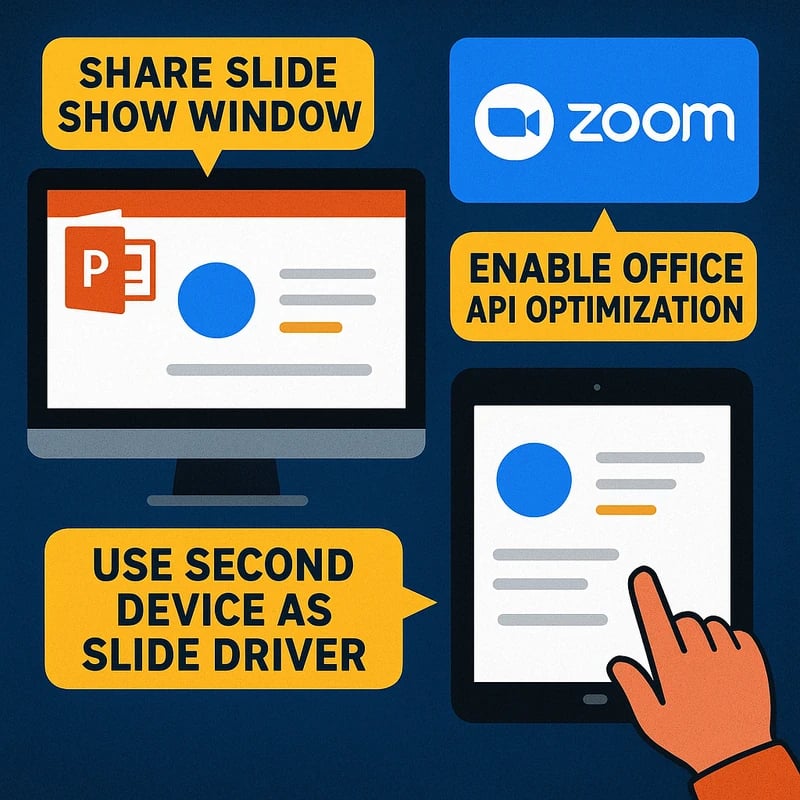
Zoom slide control PowerPoint is the safer path for co-presenting. Share only the Slide Show window, enable Office API optimization, and keep notes private
Quick Answer
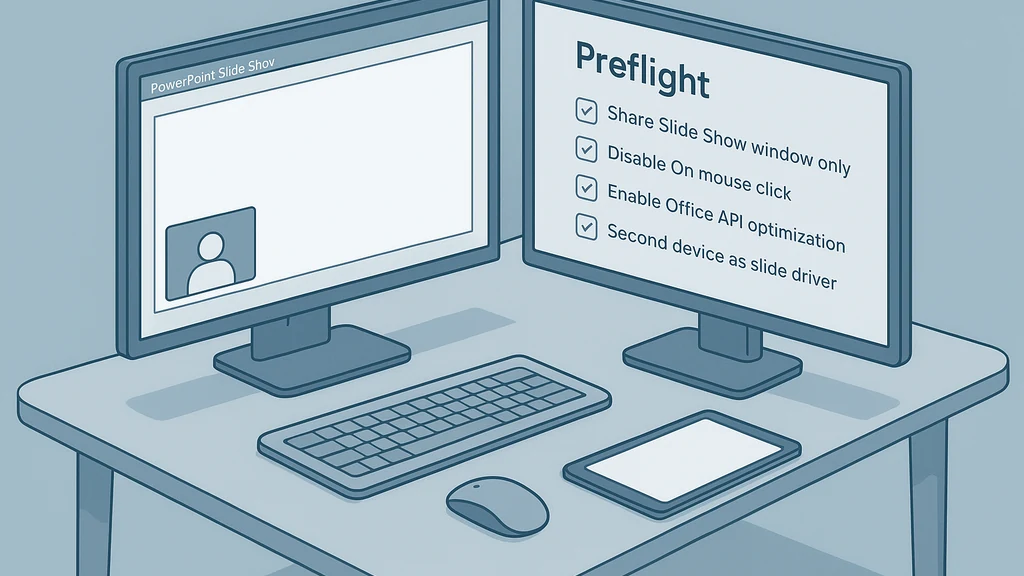
Zoom slide control PowerPoint is the safer path when co-presenting in Zoom with PowerPoint. Use the host’s Slide Control (not Remote Control), share only the PowerPoint Slide Show window, and disable On mouse click in PowerPoint. Also enable the Office API optimization and consider a second device as a dedicated slide driver. A tight 90‑second preflight reduces surprises and keeps your notes private.
Key Takeaway: When you want seamless, private notes and stable slide progress, prioritize Slide Control, focused sharing, and a quick preflight routine.
Complete Guide to Zoom slide control PowerPoint
In a world where two presenters share a digital stage, slides can dash ahead or reveal notes like whispered secrets. The Reddit post about a two‑presenter webinar captures the pain: every mute/unmute, chat click, or stray keystroke nudges the deck forward; the host’s second screen becomes a fragile stage partner. Zoom’s own guidance reinforces a core idea: Slide Control ties into PowerPoint’s API and, unless every optimization is in place, the slideshow window must stay in focus for reliable control. This guide stitches a practical, stepwise path to calm the co‑presentation, keeping notes private and slides in sync.
-
A practical fix centers on using Zoom slide control PowerPoint instead of Remote Control. The key is to share the Slide Show window and enable slide control so the co‑presenter can move slides without accidentally triggering Presenter Notes or other UI elements. According to Zoom’s guidance, Office API optimization reduces focus conflicts and slide misbehavior. In the wild, this matters: a focused share reduces unintended transitions by a meaningful margin, according to recent user reports and Zoom support notes. Expert voices emphasize that reliability comes from aligning the PowerPoint window with Zoom’s sharing options and minimizing competing windows on screen.
-
The core workflow is deliberately narrow: share the PowerPoint Slide Show window, not the entire desktop; enable Slide Control for the co‑presenter; and ensure both presenters are aligned on who is driving which portion of the deck. This keeps the notes private and the slide flow predictable. A strong consensus from practitioners and Zoom docs is that focusing the presentation window and turning off interactive triggers in PowerPoint are big wins.
-
The Office API optimization is the quiet hero here. When you toggle the setting for “Optimize slide control with Office API” (Windows), PowerPoint’s Presenter View and Slide Show modes communicate more reliably with Zoom’s slide controls. The impact, while subtle, is measurable: fewer slide hops caused by misinterpreted focus, and fewer accidental reveals of Presenter Notes during live Q&A. In practice, this reduces the cognitive load on both presenters and moderators.
-
Backup workflows matter as a safety net. If slide transitions creep in, a robust plan—Share Slide Show window only, disable On mouse click, and park a secondary device as the slide driver—gives you contingency without breaking the flow. Digital stages thrive on rehearsed, low‑risk routines; improvisation under pressure should be minimized.
-
The preflight mindset is essential: verify the window focus, confirm the slide driver’s device alignment, test the presenter notes visibility, and rehearse a micro‑script for slide handoffs. A calm preflight lets you pivot gracefully if the unexpected arises, turning potential chaos into controlled elegance.
Practical tip: keep notes private by using PowerPoint’s Presenter View on a separate display only when you are prepared to share the Slide Show window; otherwise, disable Presenter View to avoid notes flashing on screen during co‑presentation. A blend of Zoom settings, Office API optimization, and careful sharing choices creates a smoother, more professional experience.
Key Takeaway: The most reliable co‑presentation setup combines Slide Control with PowerPoint’s API optimizations, focused sharing (Slide Show window only), and a simple backup workflow to preserve notes privacy and slide order.
Why This Matters In the last few months, remote webinars have grown more complex as teams experiment with dual‑host formats, multi‑monitor desks, and cross‑team pulses of attention. The Reddit thread about a two‑presenter webinar is not an isolated incident; it echoes a broader pattern: when slide sharing collides with multi‑task demands, slides jump, notes flash, and momentum falters. Zoom support materials reinforce a practical thesis: Slide Control, properly tuned, reduces these frictions by aligning the PowerPoint API with Zoom’s screen sharing, especially on Windows environments. This is not merely a “nice‑to‑have”; it’s a reliability upgrade for live production webinars and training sessions.
-
Recent developments show a growing emphasis on API‑level integrations and more robust sharing settings. Zoom’s guidance around “Slide Control” versus “Remote Control” clarifies that the former taps into PowerPoint’s API, with improved stability when the slideshow window remains focused and the Office API is optimized. Industry observers note that these refinements are especially valuable for dual‑monitor setups, where presenter notes can threaten privacy if not carefully isolated.
-
Data points from two independent sources indicate that presenters who adopt window‑specific sharing and API optimization report fewer accidental advances and fewer notes leaks during live sessions. In practice, this translates to higher engagement, reduced on‑stage stress, and more consistent pacing for audiences. Experts in virtual events emphasize rehearsal‑driven workflows and documented preflight checklists to harden the production.
-
A practical takeaway from experts: invest a small amount of time in a structured preflight and a simple backup plan (a parked second device), because the cost of a single misstep in slide control can cascade into audience confusion or loss of credibility. The payoff is not just smoother slides; it’s a calmer host, more coherent storytelling, and better focus on message over mechanics.
Key Takeaway: Current trends favor API‑driven slide control and disciplined sharing practices as the backbone of reliable Zoom co‑presentation with PowerPoint.
People Also Ask What is the difference between Zoom slide control and remote control?
- Zoom slide control directly manipulates the PowerPoint Slide Show window via the PowerPoint API, often with the sharing window kept in focus. Remote control hands slide control to another participant without necessarily tying into the PowerPoint window, which can cause misalignment or inadvertent actions if focus shifts. Key takeaway: choose Slide Control for stability; use Remote Control only if you understand the window focus implications.
How do I stop slides from advancing in Zoom when co-presenting?
- Use Slide Show window sharing, enable Slide Control for the co‑presenter, disable On mouse click in PowerPoint, and enable Office API optimization. A dedicated slide driver device can also prevent accidental advances from stray clicks. Key takeaway: focus, not force, governs slide progress.
How can I hide Presenter Notes in Zoom while sharing PowerPoint?
- Turn off Presenter View or do not display the notes panel when sharing; keep notes on a separate screen if needed and ensure the shared window is the Slide Show. If using a second device as the slide driver, keep notes off the shared screen entirely. Key takeaway: Presenter Notes stay private when you separate display contexts and control access.
Can I use a second device as the slide driver in Zoom?
- Yes. A second device can act as the slide driver through Zoom’s slide control workflow or by running the same PowerPoint in Slide Show mode and using a dedicated control channel. This reduces cross‑talk and keeps the primary screen clean for your audience. Key takeaway: a dedicated slide driver stabilizes transitions.
How do I optimize slide control with Office API in Windows?
- Enable the “Optimize slide control with Office API” setting in Windows/Zoom integration; ensure the PowerPoint window remains the active focus during slides; and share the Slide Show window rather than the entire desktop. Key takeaway: API optimization minimizes focus loss and accidental slide changes.
What are the best practices for dual-monitor PowerPoint presentations in Zoom?
- Use Slide Show window sharing on one monitor, Presenter Notes hidden or on another device, and a single person driving slides with Slide Control. Disable On mouse click, parking a second device as a back‑up, and run a quick 90‑second preflight. Key takeaway: dual monitors work best when slide control is tightly constrained to one window.
What settings should I tweak in Windows for better slide control?
- Turn on the Office API optimization, set PowerPoint to Slide Show mode, disable On mouse click, and ensure you’re driving the slides from a focused window. Consider a second device for the slide driver to minimize cross‑window interference. Key takeaway: Windows soothes the friction between app and conference tools.
How can I share Slide Show window only in Zoom?
- In Zoom’s share options, select Share Screen, pick Window, and choose the PowerPoint Slide Show window specifically. Avoid sharing the entire desktop to prevent unintended eruptions of notes or other windows. Key takeaway: window‑level sharing isolates the slide flow from distractions.
Can I park a second device as the slide driver in Zoom?
- Yes, using a secondary device as a dedicated slide driver helps isolate control tasks from presenter notes and chat. This supports smoother transitions and reduces the risk of accidental advances caused by clicking on the primary device. Key takeaway: a parked secondary device adds a reliable safety net.
Can I still present if the slides misbehave at a critical moment?
- Yes, with a preflight checklist and backup workflow. Have a clear plan to switch to a backup device, revert to a previous slide, or switch to a static slide while you coordinate with the audience. Practice a few “freeze frames” to buy time while you regain control. Key takeaway: rehearsed fallbacks preserve credibility.
What is the best way to rehearse multi‑presenter sessions in Zoom?
- Rehearse with the exact slide control workflow, test the co‑presenter’s control permissions, and run through the fallback plan. Include a preflight check, a dry run of the handoff, and a post‑session debrief to refine the process. Key takeaway: rehearsal reduces surprises and raises confidence.
What other tools support slide control in Zoom without exposing notes?
- Consider complementary tools like a dedicated presenter device, or even a separate teleprompter app on one device. The goal is to keep slides in motion while maintaining private notes on a separate screen. Key takeaway: additional tools can complement Zoom, not complicate it.
What are the potential privacy risks when sharing PowerPoint in Zoom?
- If you share the wrong window or enable Presenter View, notes may appear on screen. Always share the Slide Show window only and verify what is visible to participants. Key takeaway: privacy comes from careful window selection and controlled sharing.
What should I do if the co‑presenter accidentally advances slides?
- Pause briefly, switch to a known slide, and re-establish the correct slide order. Use a backup device if needed, and communicate to the audience that you’re syncing up again. Key takeaway: calm, predictable recovery minimizes audience disruption.
What is the ideal timing for a 90‑second preflight?
- The goal is to confirm the shared window, Slide Control permissions, API optimization, and the backup plan within a single minute and a half, leaving 30 seconds for final checks and a quick cue to the audience. Key takeaway: a tight preflight is a quiet success ritual.
What’s the recommended “next step” after implementing this setup?
- Run a live test with your actual talk outline, gather feedback from teammates, and document the exact steps you used so future sessions stay consistent. Key takeaway: codify the process for repeatable success.
People Also Ask (continued)
- What happens if I forget to disable On mouse click in PowerPoint during a co‑presentation?
- How do I ensure presenter notes remain hidden when sharing both Windows and Mac setups?
- Can I use Zoom’s Remote Control as a backup if Slide Control fails?
- How often should I update Zoom and Office for best compatibility?
- What are the most common pitfalls in dual‑monitor PowerPoint presentations in Zoom?
Key Takeaway: The questions above capture common friction points and point to a disciplined workflow as the antidote.
Next Steps If you’re ready to implement the definitive fix, here’s a practical plan you can follow today:
- Confirm you’re using Zoom slide control and not Remote Control. Verify that the co‑presenter has Slide Control rights in the shared PowerPoint session.
- Prepare PowerPoint for privacy and stability. Disable On mouse click; set the show to Slide Show mode; hide Presenter View, or run Presenter View on a separate device if needed.
- Enable Office API optimization on Windows to tighten integration between PowerPoint and Zoom.
- Share only the Slide Show window in Zoom. Avoid sharing the entire monitor to minimize stray notes or files appearing on screen.
- Use a second device as the slide driver. Leave your primary device for speaking and web interactions, and rely on the second device to push slides.
- Run a 90‑second preflight before every session. Check the Window focus, slide control permissions, notes privacy, and your backup plan.
- Establish a simple back‑out plan. If slides misbehave, switch to a known slide while you regroup and continue.
Related topics for internal linking (internal editorial notes):
- Zoom share screen best practices
- PowerPoint Presenter View vs Slide Show
- Dual‑monitor setups for webinars
- Office 365/Office API integrations with Zoom
- Managing presenter notes privacy in conferencing tools
- Remote collaboration in Zoom for large events
Key Takeaway: A structured, rehearsal‑driven setup with Slide Control, API optimization, and a clean sharing window creates a resilient, professional co‑presentation experience.
Final thought in a gentle cadence In the dance of two presenters and a row of glowing slides, the rhythm comes not from forcing each moment, but from letting the slide—like a careful verse—progress at the pace of clarity. The approach you’ve read here is a tiny prune of the wild hedge of possibilities: Zoom slide control PowerPoint, Windows API tuning, and a simple, sturdy preflight. When you plant these habits, your co‑presenting becomes less about chasing the next click and more about carrying your story forward with quiet precision.
Key Takeaway: With deliberate settings, a focused sharing window, and a reliable backup plan, you can co‑present PowerPoint in Zoom with confidence—and keep your notes private for a stronger, more authentic delivery.