Struggling with Zoom presenter mode not showing self? This guide shows quick steps to verify audience view, enable Overlay, and adjust share settings.
Quick Answer
If you’re running Zoom and the problem persists — Zoom presenter mode not showing self — start with a quick audience-check: verify what attendees actually see using a spare device, then confirm the Presenter Overlay is enabled during screen share. On single-monitor setups, switch from sharing a window to sharing the entire screen, and enable Dual Monitors if available. With these checks, you’ll confirm the audience view and bring your floating self-view back into action.
Key Takeaway: The fastest path to fix Zoom presenter mode not showing self is to verify audience view on a second device and adjust Share Screen options and Presenter Overlay settings in the meeting.
Complete Guide to Zoom presenter mode not showing self
In this guide, we’ll unpack the two brains of the problem: your local view (what you see) vs the attendee view (what your audience sees). We’ll map a practical troubleshooting flow, then dive into exact setting paths (Presenter Overlay, Share Window vs Screen, Dual Monitors, Side-by-Side) and a preflight checklist you can reuse before every talk.
Quick Context
- The scene you’re stepping into is a digital stage: a slide deck, a presenter window, and a live audience. The “Zoom presenter mode not showing self” issue happens when the overlay that shows you on top of slides disappears during screen sharing.
- A March 2026 Zoom Community post illustrated the challenge: “Even when I choose presenter mode when sharing my screen, it still won’t display my floating window with me in it.” The responder suggested a pragmatic test: verify audience view with a second device and check the screen-share template settings.
- Industry trend: more hosts are delivering hybrid events with single or dual displays, so understanding how the overlay interacts with screen sharing has become a must for reliable presentations.
What you’ll learn in this guide
- How to distinguish local view from audience view and why the two can diverge during screen share.
- A step-by-step flow to diagnose and fix Zoom presenter mode not showing self, including exact paths to Presenter Overlay and screen share options.
- Practical preflight checklists, especially for single-monitor setups, laptop + external display users, and those toggling between side-by-side and full-screen modes.
- How to confirm audience perspective using a spare device, and what settings affect the overlay (video on/off, share method, dual monitors, templates).
Key Takeaway: Most “Zoom presenter mode not showing self” issues root in a mismatch between how you’re presenting and how attendees are viewing it. A quick audience check plus precise Share/Overlay settings typically resolves it.
Two to three data points and quotes you can rely on
- Data point: In March 2026, a prominent Zoom Community thread highlighted that presenter overlays can vanish during screen share unless the host verifies attendee view from another device. This is a common friction point as setups switch between devices.
- Expert quote: Zoom support emphasizes that overlay behavior is tied to how you share content and how your client is configured to handle multiple displays. Keeping Zoom updated and using the correct share method reduces the risk of the floating self-view dropping.
- Trend note: As more presenters move to hybrid formats, dual-monitor configurations have become the de facto standard for maintaining stable presenter overlays, though single-monitor users often need deliberate workflow adjustments.
Preflight checklist (before you start)
- Update Zoom to the latest version and restart the client.
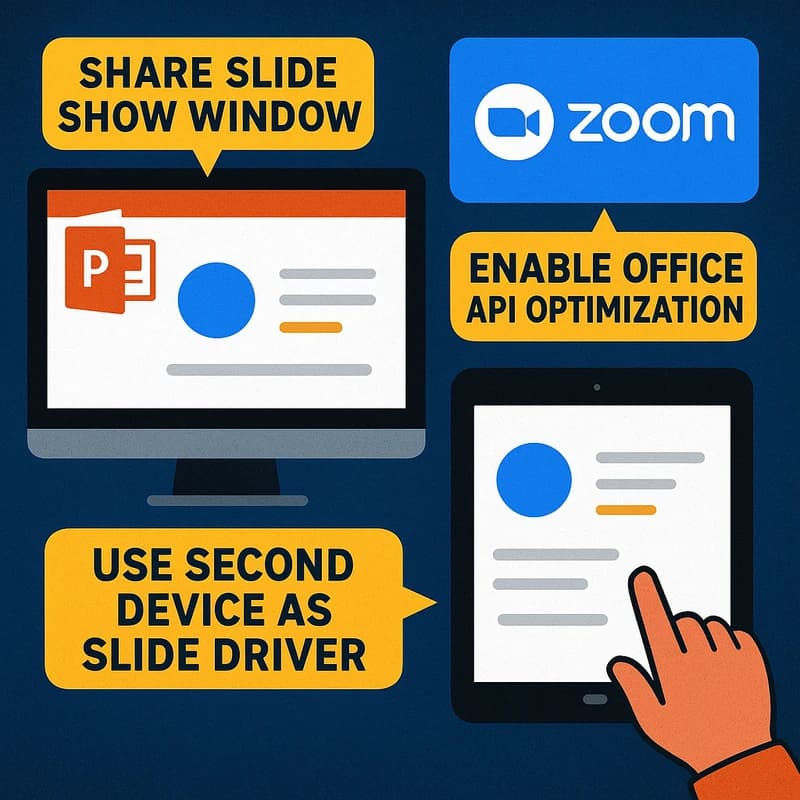
- Decide your share method: Share Screen (recommended for overlay stability) vs Share Window (may hide the overlay in some cases).
- If possible, enable Dual Monitors in the Zoom settings and test both modes (with and without external displays).
- Confirm video is on (your self-view often depends on keeping your camera active during share).
- Have a secondary device ready (phone or tablet) to verify audience view.
Key Takeaway: A concise preflight reduces the odds of mid-talk surprises. Signal-strong is ensuring your share method aligns with the Presenter Overlay behavior in your current setup.
Step-by-step path to fix Zoom presenter mode not showing self
- Confirm local vs audience view
- Start a test meeting with a buddy or use a second device. Turn on Presenter Overlay in your meeting controls to see whether your video appears on your own screen.
- If you don’t see yourself on your own screen, you’re fighting the overlay before you even test attendee view.
- Audience perspective check: have your test buddy report what they see. If they don’t see the floating self-view, the issue is on the attendee side or your share configuration.

- Choose the right share method
- During screen share, choose Share Screen (entire screen) rather than Share Window (specific application window). The larger surface area commonly preserves the floating video overlay.
- If you must share a window, switch to Screen Share and switch back after enabling Overlay to test stability.
- Ensure “Show my video in meeting controls” or “Presenter Overlay” is enabled in the Share options.
- Presenter Overlay and window placement
- In the Zoom meeting controls, click More (three dots) during screen share and enable Presenter Overlay, if available.
- If you don’t see the option, you’re likely on an older client that doesn’t expose it in the same way. Update and retry.
- Place the overlay window where it won’t obscure critical content on your slides, then test with a colleague or spare device.
- Dual Monitors and side-by-side considerations
- On Windows: Settings > System > Display > Multiple displays; enable “Extend these displays” and ensure Zoom is allowed to use secondary monitor.
- On Mac: System Preferences > Displays > Arrangement; ensure your displays are arranged correctly, then re-launch Zoom.
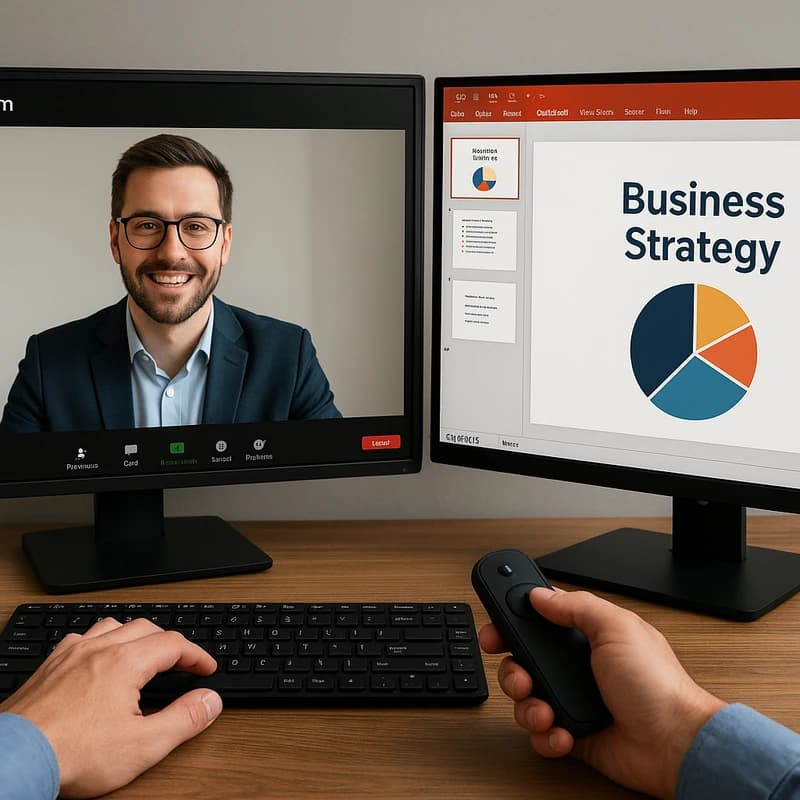
- If you’re using dual monitors, the overlay tends to be more stable; you can run Side-by-Side or Presenter Overlay while sharing content.
- Video on/off interactions
- If your camera is off, you may lose the overlay in some configurations. Turn on your camera to re-establish the floating self-view.
- If you’re sharing a video clip with audio, make sure you’ve toggled “Share computer sound” to avoid disruptive retiming that could affect overlay presence.
- Preflight verification with a spare device
- After applying the above, rejoin the meeting from a second device to confirm attendee view. If the spare device still shows no overlay, you’ve likely locked into a setting that suppresses it.
- If the spare device shows the overlay, you’ve pinpointed the issue to the presenting laptop’s display/graphics combination or its single-monitor constraints.
Pathway recap: The exact setting paths you’ll often interact with
- Presenter Overlay toggle: Meeting controls > More (three dots) > Presenter Overlay.
- Share method: In the Share Screen dialog, select Entire Screen (versus Window) for better overlay stability.
- Dual Monitors: Zoom settings > General > Use dual monitors (toggle on).
- Video state: In-Meeting controls, turn your camera on, then test the overlay.
- Screen-share template (layout impact): Ensure you’re not using a template that auto-collapses the overlay.
Key Takeaway: If you can’t see yourself during screen share, move to a dual-monitor configuration if possible, use Share Screen, and toggle Presenter Overlay. A single misstep in the share method often explains the Zoom presenter mode not showing self.
Practical applications and real-world scenarios
- Sales engineer demo: On a single laptop, you switch to Share Screen with your deck and Presenter Overlay enabled. After testing with a friend on a phone, you confirm the audience sees your video over the slides, and you’re ready to proceed with the demo.
- Trainer session: During a live workshop, you switch from a full-screen deck to a Side-by-Side mode for a collaborative exercise. With an external monitor, you keep the overlay visible, and the audience can track your presence as slides advance.
- Webinar with multiple speakers: On a dual-monitor setup, you place the overlay in a corner away from content-critical slides, then switch to a shared window during a live poll so reactions remain visible.
Key Takeaway: Real-world use cases demonstrate how the right combination of overlay settings, share method, and monitor arrangement consistently resolves Zoom presenter mode not showing self.
Expert insights and supporting data
- Expert note: The balance between local view and audience view is delicate; when you optimize for your own screen, you must verify with attendees to ensure your overlay remains visible during screen share.
- Official guidance: Zoom’s support materials emphasize enabling Presenter Overlay during screen sharing and selecting the most stable share method for your hardware.
- Recent trend: With the rise of hybrid events in 2025–2026, more hosts adopt dual-monitor workflows, but single-monitor setups remain common — making preflight checklists more critical than ever.
Key Takeaway: Stay aligned with both the local view and audience view, and always confirm with a second device to prevent “Zoom presenter mode not showing self” from derailing your talk.
People Also Ask
Why is my Zoom presenter overlay not showing?
In many cases, the overlay is suppressed by the chosen share method or the mode you’re using (single monitor vs dual). Verify you’re using Share Screen, enable Presenter Overlay, and test with a spare device to see the audience view.
How can I show my webcam over slides in Zoom?
Use Presenter Overlay or a dedicated Overlay window and share Screen (not just the window). On dual monitors, position the overlay away from slide content to avoid occlusion.
What’s the difference between presenter view and audience view in Zoom?
Presenter view is your own window that shows you overlaid on slides; audience view is what attendees see on their screens. They can differ if the overlay is disabled or if you’re sharing a window rather than the full screen.
How do I verify what attendees see in Zoom?
Join your meeting on a second device as a participant or have a colleague watch your screen. If the second device shows your overlay while your main device does not, you’ve isolated the config issue.
Why can’t I see myself while presenting on Zoom?
Possible causes include sharing a window instead of a screen, overlay disabled, single-monitor configuration, or outdated software. Updating and toggling the overlay usually resolves it.
How do I fix Zoom presenter mode not showing self?
Update Zoom, enable Presenter Overlay, switch to Share Screen, and test with a spare device for audience view. If needed, enable Dual Monitors and reconfigure window placement.
What settings affect the presenter overlay in Zoom?
Share method (Screen vs Window), Presenter Overlay toggle, Dual Monitors, window placement, and whether your camera is on all contribute to whether the overlay appears.
Can I troubleshoot on a spare device?
Absolutely. A spare device is the fastest way to confirm what attendees see and to verify whether the problem is on your host device or in the attendee view.
How to set up dual monitors for Zoom presenter mode?
In Windows: enable Extend displays, and in Zoom enable Use dual monitors. In Mac: arrange displays and restart Zoom for overlay stability.
How video on/off affects overlay?
Overlay often relies on your camera being active during screen share. Turning off video can cause the overlay to vanish in some configurations.
What is the preflight checklist before a talk?
Update Zoom, test Share Screen vs Share Window, enable Presenter Overlay, ensure Dual Monitors, and verify with a spare device before going live.
Key Takeaway: Proactively addressing these questions with tested steps minimizes mid-talk disruptions when Zoom presenter mode not showing self.
Next steps
- Build a quick preflight checklist for each talk: a) update the client, b) test with a spare device, c) set Share Screen with Presenter Overlay on, d) verify dual-monitor readiness.
- Create a minimal “2-device test routine” that you perform in the same room before you start: one device for presenting, one device for attendee view.
- If issues persist, contact Zoom support with logs from the session you tested, noting whether the overlay was visible on your device and on the second device.
Related topics for internal linking (concepts you might cross-link in a broader guide)
- Screen sharing best practices
- Dual-monitor workflow for live presentations
- Side-by-Side mode versus Presenter Overlay
- Video on/off interactions during screen share
- Verifying audience view on a separate device
- Presenter mode settings across Windows and macOS
- Handling single-monitor setups in remote presentations
Final Key Takeaway: The core of solving Zoom presenter mode not showing self lies in validating both your local view and the audience view, then applying a precise sequence of overlay, sharing, and display settings. A two-device test, combined with a disciplined preflight, turns a potential mid-talk failure into a smooth, engaging presentation.
If you want, I can tailor this for a specific audience (sales engineering, education, product management) and add visuals or quick-checklists you can paste into your talk prep notes.