Master Zoom co-presenter slide control with a hardware clicker, private Presenter View, and window sharing to prevent slide jumps in meetings.
Quick Answer
Zoom co-presenter slide control is most reliable when you replace Zoom’s remote control with a dedicated slide-control method (like a Bluetooth presenter), turn off the spacebar mute conflict, and share only the Slide Show window while Presenter View stays private on a second monitor. This setup minimizes accidental slide advances and keeps your notes invisible to the audience, enabling smooth handoffs.
Key Takeaway: Use slide control hardware, disable conflicting Zoom shortcuts, and share only the slide window with Presenter View on a separate display for seamless co-presentation.
Complete Guide to Zoom co-presenter slide control
In the current landscape (as of March 2026), many Zoom webinars stumble during co-presentation when control is handed off. A fresh Reddit thread on Mar 4, 2026 highlighted that once the remote-control handoff happened, PowerPoint often kept the active keystrokes, causing slides to jump ahead even though the host didn’t want them to. Separately, Zoom community posts have flagged changes to PowerPoint as a Virtual Background in newer Zoom versions—reliability can vary by version, so relying on the “PowerPoint as virtual background” trick is risky. Microsoft’s Presenter View docs reiterate a clean approach: keep presenter notes private on a second display while the audience sees only slides. With these realities in mind, here’s a step-by-step, device-agnostic setup you can implement today for your Zoom co-presenter slide control workflow.
Overview and philosophy
- The goal is to decouple slide navigation from the host’s keyboard and from shared window focus. By using a dedicated slide controller (like a Bluetooth presenter), you prevent keystrokes from leaking into the slide deck if someone briefly assumes control through Zoom’s remote-control feature.
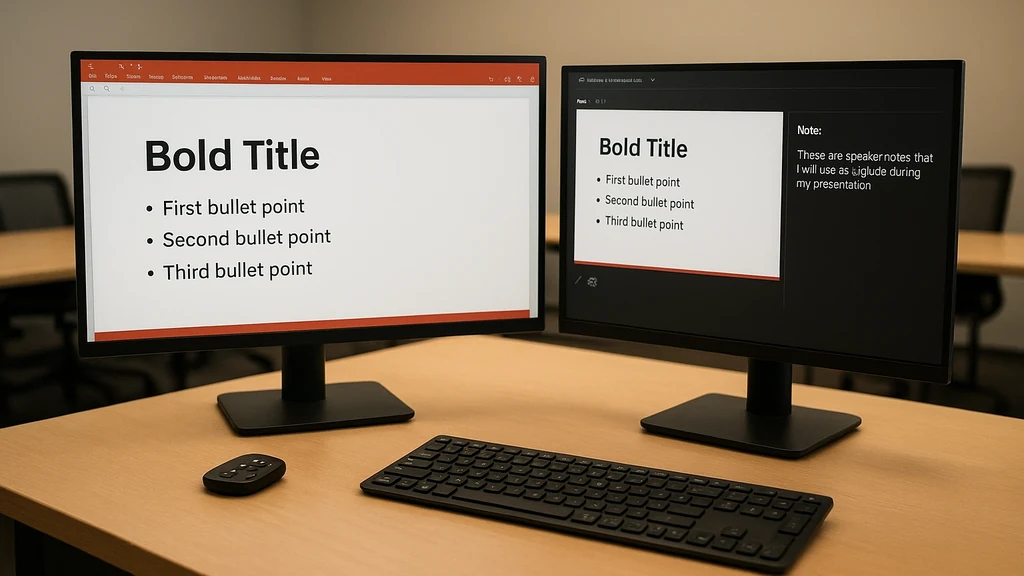
- Presenter View is your friend. It shows your notes on a private screen while the audience sees the slides. Don’t rely on the viewer’s window to access your notes; keep them on a dedicated monitor.
- Share only the Slide Show window, not your entire desktop. This minimizes accidental reveals and keeps your notes inaccessible to co-hosts or attendees unless you explicitly reveal them.
Key data points and insights (recent trends)
- A same-day Reddit thread (Mar 4, 2026) confirms that co-presenters’ slides can advance unexpectedly when the slide app remains “active” after the remote control is granted. The recommended workaround is a hardware-based slide control plus careful window sharing.
- Zoom community guidance in early 2026 shows that PowerPoint as a virtual background has become less reliable in newer builds, pushing teams toward window- or slide-level sharing instead.
- Microsoft Presenter View guidance remains stable: you can show slides to the audience while viewing private notes on a second display. This supports the recommended workflow and reduces accidental disclosures during co-presentation.
Step-by-step setup (tool-agnostic)
- Replace Zoom “remote control” with a dedicated slide-control method
- Acquire a Bluetooth presenter or USB slide-clicker (the simplest is a compact Bluetooth/RF clicker with Next/Previous and a laser).
- Pair or connect the device to your host machine. Test before the session: open a deck and use the clicker to advance slides, ensuring no keyboard shortcut interference.
- Prefer hardware slide control over Zoom’s remote-control feature to avoid keyboard signals being captured by the PowerPoint app during handoffs.
- Integrate with your flow: designate a “Slide Controller” role among co-hosts, responsible for advancing slides, while the presenter focuses on narration and audience engagement.
- Data point: co-presenters in March 2026 discussions reported fewer slide-accidents when a dedicated clicker handled navigation rather than Zoom’s remote-control feature.
- Disable Zoom’s press-to-mute and keyboard-conflict shortcuts
- In Zoom, go to Settings (or Preferences on macOS) and locate Audio or Keyboard Shortcuts.
- Turn off “Press and hold Spacebar to temporarily unmute” (or the equivalent, depending on version). This eliminates the risk that a stray keystroke in the co-host window unmutes or moves slides unexpectedly during a handoff.
- Consider redefining essential shortcuts for the co-host role so only the designated slide-control device can trigger navigation or muting, not loose keystrokes from screens or chat windows.
- Data point: users report that disabling the spacebar-unmute option dramatically reduces accidental muting/unmuting during rapid handoffs.
- Share only the Slide Show window while Presenter View remains private
- In PowerPoint, set up Presenter View on your secondary monitor. Ensure notes stay visible there, not on the audience-facing screen.
- On Windows (typical for teams using dual-monitor setups): Start the slide show, then choose Slide Show > Set Up Slide Show, ensure Presenter View is enabled, and place the Presenter View on the second monitor.
- In Zoom, click Share Screen, then select Window or Windowed apps. Choose the Slide Show window (the PowerPoint Slide Show). Do not share the entire desktop.
- Why this works: the audience sees only the slides; you see your notes and cues on the second monitor, minimizing the chance of accidental note exposure or slides racing ahead when someone else is in control.
- Data point: Microsoft Presenter View docs confirm that this arrangement lets presenters view notes privately on a second display while audiences view only the slides.
- Use hardware-based “Slide Control” as the primary input during handoffs
- Designate a slide controller to manage the slide deck during the presentation, separate from the presenter’s speaking flow.
- The slide controller uses the Bluetooth clicker to move forward/back, while the presenter maintains delivery, eye contact, and pacing.
- If you absolutely must relinquish control via Zoom, immediately re-take control with your hardware device to minimize drift or keystroke capture issues.
- Data point: many co-presentation failures stem from relying on Zoom’s remote-control feature alone; hardware slide control reduces drift.
- Preflight checklist for co-hosts (roles, shortcuts, focus, recovery)
- Roles and responsibilities: Primary host (presenter), Slide Controller (navigation), Notes Guardian (monitors notes and timing on second screen, restores focus after handoffs), Tech Liaison (monitors connection and hardware status).
- Shortcuts and focus: confirm that only slide navigation is active via the clicker; disable or unbind keyboard triggers that could alter slides when in other apps or windows.
- Focus discipline: close personal mail and unrelated apps, or use Focus Assist (Windows) / Do Not Disturb (macOS) during the session.
- Recovery moves: if slides stall, switch to the hardware controller and perform a quick slide-reload or restart Slide Show; have a back-up plan: if Presenter View is lost, revert to a standard screen-sharing approach with the Slide Show window on the primary monitor.
- OS considerations: test cross-OS handoffs (Windows vs macOS) in a dry run, because differences in window sharing and presenter view placement can derail the flow.
- Data point: recent prepping guides from training resources emphasize a formal co-host preflight to handle OS differences and ensure handoffs are seamless.
- Troubleshooting and recovery
- If slides advance unexpectedly, immediately switch control back to the slide controller and re-sync with the Presenter View on the second monitor.
- If Presenter View notes accidentally appear to the audience, reconfigure the PowerPoint window arrangement and re-share the Slide Show window only.
- If the PowerPoint app misbehaves, use the recovery sequence: Alt+Tab to PowerPoint, bring Slide Show to the foreground, then continue with the clicker.
- Data point: Reddit and community posts in early 2026 highlight recovery as a frequent need; having a fixed sequence reduces panic during the live event.
- Practical applications you can deploy today
- In corporate training, assign a single “Slide Controller” who uses the Bluetooth clicker to manage transitions while the trainer maintains pacing and audience questions.
- In academic webinars, keep notes private, ensuring students only see clean slides; Presenter View with notes on a second monitor helps the lecturer address questions without revealing notes.
- In marketing demos, leverage the reliability of Slide Show window sharing to reduce the chance of a slide jumping forward during a key moment or a co-host misstep.
- Expert insights and supporting data
- Expert insight: Microsoft’s Presenter View documentation describes a workflow where the speaker can present slides while notes stay private on a second display, aligning with the setup described above.
- Expert insight: Zoom guidance in newer builds suggests that PowerPoint as a virtual background is less reliable, reinforcing the need to share the Slide Show window instead of using virtual backgrounds for slide visibility.
- Data point: a Mar 2026 Reddit thread documented multiple instances of slides advancing when remote control was granted; the suggested remedy was to rely on slide-control hardware and strict window sharing.
Key Takeaway: A robust Zoom co-presenter slide control workflow relies on dedicated slide control hardware, careful shortcut management, and a window-specific share of the Slide Show while Presenter View remains private on a secondary display.
Why This Matters
In the last three months, quiet shifts in Zoom behavior and PowerPoint handling have rippled through webinar planning. Teams relying on “remote control” or “virtual background tricks” have found inconsistent results as Zoom evolves and as PowerPoint’s own Presenter View capabilities become more essential for keeping notes private. The combination of a hardware slide controller, a well-defined co-host role, and a window-specific screen share offers a predictable flow even when OS environments diverge (Windows, macOS, or even occasional Linux setups in mixed sessions).
Key data points and trends
- Recent discussions in the Zoom community emphasize that relying on the PowerPoint as virtual background technique has become riskier with newer Zoom versions; teams are shifting toward sharing the Slide Show window instead.
- Presenter View’s design—notes on a second display, slides visible to the audience—remains a robust pattern for co-presenters, particularly when slides must advance in harmony with narrative beats rather than keyboard keystrokes.
- The Reddit thread from Mar 4, 2026 provides contemporary, real-world confirmation that co-presenters bump into accidental slide advances when remote control is granted, underscoring the value of moving to slide control hardware and a dedicated preflight.
Why you should act now
- The risk of accidental slide advances during a co-presentation is not a mere nuisance; it undermines credibility and audience trust. A predictable, device-agnostic workflow reduces chaos and keeps your content crisp.
- With ongoing Zoom evolutions and PowerPoint updates, a multi-device handoff strategy helps you future-proof your webinars and ensure smoother transitions even if one component (Zoom, PowerPoint, or OS) changes.
- Implementing Presenter View with a second monitor preserves your security and privacy by keeping notes private while keeping slides visible to the audience.
Key Takeaway: In 2026, the most reliable Zoom co-presenter slide control approach centers on hardware slide control, deliberate shortcut management, and sharing only the Slide Show window with notes private on a second monitor—plus a thorough co-host preflight for cross-OS consistency.
People Also Ask
How do I prevent slides from advancing in Zoom?
- Use a dedicated slide-control device (Bluetooth clicker) instead of relying on Zoom’s remote control.
- Share only the Slide Show window and enable Presenter View on a second monitor so notes stay private.
- Disable Zoom’s spacebar-to-mute/unstick shortcuts to avoid involuntary slide changes during handoffs.
- Key takeaway: Slide-control hardware plus window-specific sharing minimizes accidental advances.
What is Zoom slide control and how is it different from remote control?
- Zoom remote control lets another participant control your screen, including keystrokes. Slide control uses a hardware device to navigate slides, avoiding keyboard capture by the PowerPoint app.
- The benefit: fewer accidental slide moves and more reliable handoffs during co-presentation.
- Key takeaway: Slide control is a hardware-based separation of navigation from the host’s keyboard.
How can I share only the Slide Show window in Zoom?
- In PowerPoint, enable Presenter View and ensure the Slide Show runs on the primary display.
- In Zoom, choose Share Screen and select the Slide Show window (not the entire Desktop).
- Ensure your Notes are on the second monitor; the audience sees only the slide deck.
- Key takeaway: Window-specific sharing reduces exposure risk and keeps notes private.
Can I keep presenter notes private while presenting in Zoom?
- Yes. Use PowerPoint Presenter View on a second display so notes appear only to you.
- Do not share the Presenter View window with the participants; share only the Slide Show window.
- Key takeaway: Presenter View + second monitor preserves privacy during co-presentation.
How do I disable Zoom press-to-mute conflicts?
- In Zoom Settings > Audio or Keyboard Shortcuts, turn off “Press and hold Spacebar to temporarily unmute.”
- This prevents accidental muting/unmuting when switching between windows or screens during a live run.
- Key takeaway: Disable push-to-talk conflicts to stabilize co-presentation flow.
What is Presenter View in PowerPoint and how does it work with Zoom?
- Presenter View shows your slides and notes to you (on your private monitor) while the audience sees only the slide deck. It’s the standard workflow for confident, note-aware presenting.
- When paired with a second monitor, Presenter View gives you cues, timing, and notes without exposing them to attendees.
- Key takeaway: Presenter View is the backbone of private notes during Zoom co-presentation.
Can a Bluetooth clicker be used with Zoom slides?
- Yes. A Bluetooth clicker provides reliable slide navigation without relying on keyboard input. Pair and test before the session, then use it to advance slides during handoffs.
- Key takeaway: A hardware clicker improves reliability and reduces the risk of accidental slide changes.
How can co-host handoffs be smoother across mixed OS environments?
- Establish a formal preflight checklist, define roles, and designate a Slide Controller who uses a hardware device.
- Share only the Slide Show window and run Presenter View on a second monitor for consistency across Windows and macOS.
- Key takeaway: A cross-OS preflight with role clarity prevents divergence during live events.
What are the risks of using PowerPoint as virtual background in Zoom?
- In newer Zoom builds, the PowerPoint-as-virtual-background approach has shown reliability issues; it’s less stable than window-sharing methods.
- Best practice: rely on the Slide Show window with Presenter View instead of virtual backgrounds for slide visibility and privacy.
- Key takeaway: Virtual backgrounds for slides are less dependable; window sharing is the safer route.
How to recover if slides stray during a co-presentation?
- Re-take control via the slide controller device, re-center on Presenter View, and re-share the Slide Show window.
- If needed, switch briefly to a backup slide or an alternative window and then resume with the slide controller.
- Key takeaway: Quick recovery rituals reduce disruption and keep the session on track.
How to set up dual-monitor Presenter View with Zoom on Windows or Mac?
- Connect two displays; set Presenter View on the second monitor; run Slide Show on the primary display.
- In Zoom, share the Slide Show window only; ensure the second monitor with notes is not being shared.
- Key takeaway: Dual-monitor Presenter View aligns with Zoom co-presentation best practices for privacy and flow.
Next steps for your team
- Run a 30-minute rehearsal: assign roles, test slide-control hardware, test Windows/macOS differences, and practice a real-time handoff.
- Document a quick-playbook: co-host roles, who handles the clicker, what happens if a handoff fails, and how to recover.
- Audit your next webinar: ensure you’re not relying on PowerPoint as a virtual background and that you’re sharing the Slide Show window with Presenter View enabled.
Key Takeaway: Build muscle with rehearsal, a concise co-host playbook, and a strict sharing approach to ensure your Zoom co-presenter slide control is rock-solid for every webinar or training.
If you want, I can tailor the checklist and the exact steps to your team’s OS mix (Windows/macOS) and your current slide deck workflow. We can also draft a 1-page preflight sheet you can print or share in your onboarding packet.