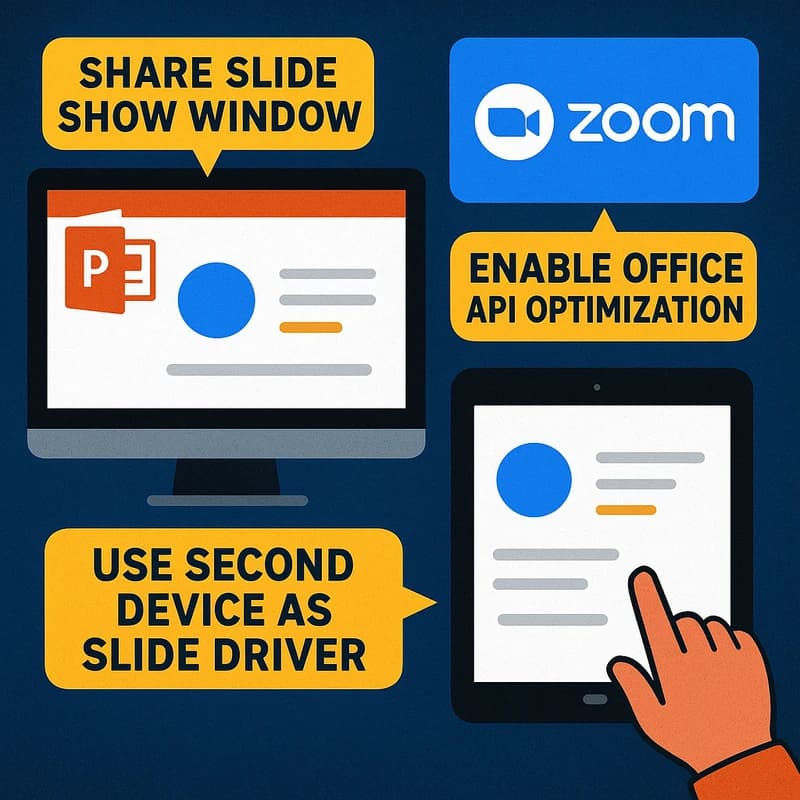
Discover a reliable PowerPoint Copilot workflow that blends Copilot speed with human edits. Outline first, then polish-grab the quick preflight checklist.
Quick Answer
For a reliable PowerPoint Copilot presentation workflow, start with Copilot to outline and rough visuals, then switch to manual editing for client-facing slides. Use a concise preflight checklist, enable offline fallbacks, and keep an AI rollback plan ready. This field-tested rhythm keeps you in control when Copilot stalls and prevents live‑demo derailments.
Key Takeaway: Establish a simple boundary—outline-first with Copilot, then own the deck with your own edits and offline backups.
Complete Guide to PowerPoint Copilot presentation workflow
A field-tested rhythm for enterprise presenters blends the speed of Copilot with the safety net of human control. The goal is not to replace your judgment but to augment it—so your PowerPoint Copilot presentation workflow becomes a dependable partner, not a live-fire hazard. Below is a practical, step-by-step framework that you can adopt, adapt, and teach to teams across sales engineering, account management, and product management.
-
Start with a clearly defined scope. Before launching Copilot, specify the deck’s purpose, audience, and required outcomes. This prevents Copilot from wandering into off-topic visuals or dubious data storytelling. In this approach, the PowerPoint Copilot presentation workflow acts as a scaffold rather than a final authority.
-
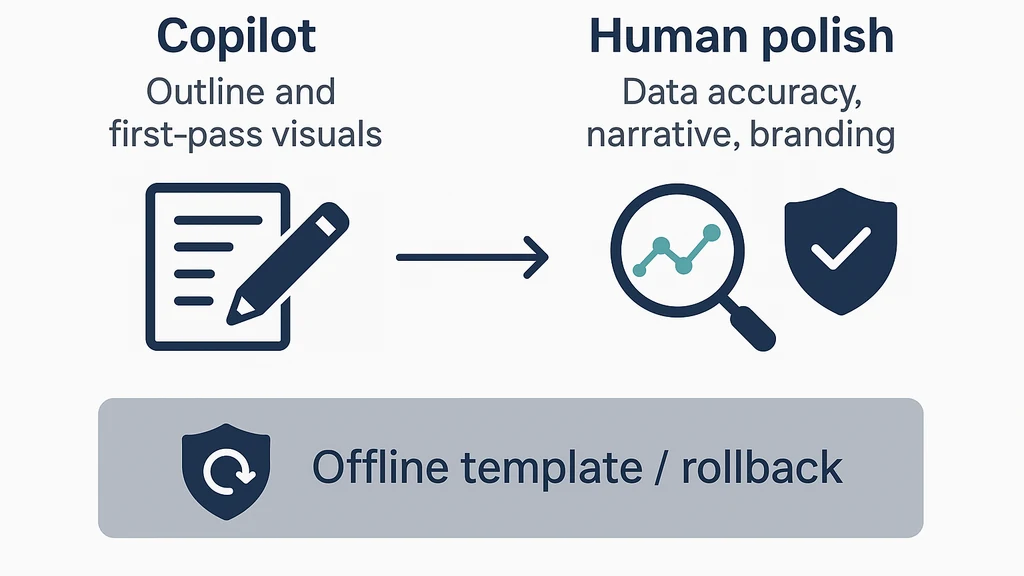
Outline-first, then design. Use Copilot to draft a skeleton: title, agenda, section headers, and a rough data layout. The second pass should be human- authored formatting, data verification, and persuasive storytelling. The emphasis is on speed for structure, not on the pixel-perfect polish.
-
First-pass visuals with guardrails. Let Copilot generate initial slide visuals, but define guardrails: brand colors, font families, chart types, and a hard limit on slide density. The aim is a consistent visual language that reduces the need for heavy rework later.
-
Preflight checks before you demo. Run a standardized checklist to verify alignment with branding, data accuracy, slide order, and accessibility (contrast, font size). This is the strongest defense against “Copilot in PowerPoint not working” at the moment of truth.
-
Prepare offline fallbacks. Build a parallel, offline-friendly template and a slide-by-slide offline version of the deck. If Copilot connectivity or performance slows, you can proceed with confidence using a locally stored version.
-
AI rollback plan at the ready. Your PowerPoint Copilot presentation workflow should include a rollback protocol: save a clear version, disable Copilot temporarily, and switch to manual editing to complete the deck. A quick rollback reduces risk in front of clients.
-
Post-prep review and rehearsal. After the initial cycle, rehearse with a buddy or a presenter coach, tune timing, check data, and verify that the narrative arc aligns with client objectives. The checklist becomes a ritual that sharpens your delivery.
-
Documented disclosure and compliance. When working with regulated clients, disclose AI assistance in a concise, compliant manner. A short, ready-to-use disclosure script helps maintain transparency without derailing the narrative.
-
Continuous improvement loop. Capture feedback from stakeholders after every presentation to refine both the Copilot prompts and the preflight checklist. A living PowerPoint Copilot presentation workflow reduces friction over time and scales across teams.
-
Examples of a practical timeline. In a typical 60-minute client briefing, allocate 10 minutes for an outline with Copilot, 25 minutes for first-pass visuals, 15 minutes for manual refinement, and 10 minutes for rehearsal and QA. The remaining time is earmarked to address client questions and potential live data updates.
-
Safety and ethics at the core. Treat AI-generated content with skepticism; verify claims, cite sources, and ensure you own the final narrative. This is especially critical when presenting to executives or wary customers.
Key Takeaway: A dependable PowerPoint Copilot presentation workflow is built on an outline-first strategy, strict preflight checks, offline fallbacks, and a ready AI rollback plan—so you stay in control even when Copilot glitches occur.
Practical applications you can adopt today:
- Outline-first deck creation: Use Copilot to draft a slide ledger (Title, Agenda, Problem, Solution, Proof, CTA); then replace with your own wording and storytelling cadence.
- Visual pacing: Set a maximum number of charts per deck and enforce consistent chart styles with Copilot-provided templates that you subsequently customize.
- Brand hygiene: Maintain a shared style guide (colors, fonts, logo usage) and embed it into your Copilot prompts so auto-generated slides stay on-brand.
- Client-ready disclosure: Prepare a one-paragraph AI-use disclosure that you can paste into client decks when required.
Supportive data and trends you should know:
- The Reddit thread from February 25, 2026 reveals enterprise frustration: Copilot is “garbage” for slide creation, despite occasional usefulness in Teams, highlighting a mismatch between chat-like AI capabilities and live deck building.
- A same-day Hacker News Ask HN demonstrates strong appetite for practical, field-tested resources on AI-assisted presentations, signaling a demand for reliable workflows rather than generic advice.
- Privacy concerns around Microsoft 365 AI are shaping how teams discuss AI use with clients; a concise disclosure approach is becoming a best practice in regulated contexts.
- Enterprises are prioritizing offline functionality and robust rollback mechanisms as AI features evolve, underscoring the need for a well-documented, repeatable PowerPoint Copilot presentation workflow.
Related topics you’ll want to explore later for internal linking (no links here):
- Copilot troubleshooting for PowerPoint
- Brand-safe slide design and governance
- Microsoft 365 Copilot privacy controls and data handling
- AI disclosure templates for client-facing decks
- Offline AI capabilities and local templates
- Preflight checklists for presentations
Bottom line: The PowerPoint Copilot presentation workflow is most effective when Copilot handles structure and initial visuals, while humans handle narrative, data integrity, and brand-sensitive polish. This hybrid approach reduces risk, preserves client trust, and creates a repeatable playbook you can scale.
Key Takeaway: Embrace a disciplined, offline-ready, rollback-capable workflow that treats Copilot as a co-pilot—not the pilot—of your most important client conversations.
How to implement this guide in your team
- Start with a one-page Quick Start sheet outlining when to engage Copilot in the deck-building process and when to switch to manual editing.
- Build a short, reusable preflight checklist (branding, data accuracy, slide order, accessibility).
- Create an official offline PowerPoint Copilot template to accelerate offline fallback readiness.
- Draft a concise AI-use disclosure script tailored to your industry and client expectations.
- Schedule quarterly review sessions to refine prompts, templates, and rollback procedures.
Key Takeaway: A shared, repeatable workflow with clear handoffs between Copilot and human creators creates reliability your customers can feel.
Why This Matters
In the last 3 months, the conversation around AI-assisted presentations has sharpened from “what’s possible” to “what’s reliable in real client scenarios.” The power of Copilot, when harnessed correctly, is immense, but the risk of derailment during live or live-on-camera moments remains a critical concern for customer-facing teams.
- The Reddit thread from February 25, 2026 highlighted a clear pitfall: Copilot can derail your deck if left unchecked, especially on data-heavy slides or narrative transitions. This reinforces the need for a well-defined fail-safe.
- The same-day Hacker News Ask HN indicated a strong appetite for practical, field-tested resources rather than theoretical guidance. Presenters want actionable workflows, checklists, and scripts that work in real meetings, not just in experiments.
- Privacy and disclosure considerations have become more prominent as Microsoft 365 AI features expand. Regulated audiences expect transparency about AI involvement, data handling, and content provenance, which affects how you design and present AI-assisted decks.
With these realities, the PowerPoint Copilot presentation workflow becomes a strategic asset for enterprise teams. It supports speed without sacrificing credibility, ensuring that AI augmentation strengthens rather than undermines your client conversations. The right blend of automation and oversight can shorten sales cycles, improve win rates, and protect your brand when decisions are data-driven and well-communicated.
Key Takeaway: In 2026, reliability and disclosure are as important as capability. Your workflow should prioritize robust controls, transparent AI use, and offline resilience to meet client expectations and regulatory requirements.
People Also Ask
-
How do I use Copilot in PowerPoint safely? Short answer: Use Copilot for outline and first-pass visuals, then take full control for data accuracy, narrative flow, and branding. Keep a strict preflight checklist and an AI rollback plan ready. This minimizes risk during client-facing presentations and preserves trust. Key Takeaway: Safety comes from boundaries and layered checks.
-
Why is PowerPoint Copilot not reliable for slides? Short answer: Copilot excels at structure and rapid drafting but can misinterpret data or storytelling needs. The fix is to segment tasks—outline and rough visuals with Copilot, manual polish for data accuracy and narrative polish—and to rely on offline fallbacks when needed. Key Takeaway: Reliability is engineered through role separation and fallback options.
-
What is the best workflow for AI-assisted PowerPoint slides? Short answer: The best workflow uses Copilot for the outline and initial visuals, a preflight checklist for quality gates, offline fallbacks for resilience, and a quick AI rollback plan. The human editor remains the final arbiter on data integrity and narrative coherence. Key Takeaway: A hybrid approach compounds benefits while reducing risk.
-
How do I disclose AI use in client presentations? Short answer: Include a concise, client-appropriate disclosure at the deck’s start or end: “Parts of this presentation were assisted by AI tools (Copilot) to improve structure and visuals. Data sources were validated by the presenter.” Adjust language for regulatory needs. Key Takeaway: Transparency builds trust and compliance.
-
How can I rollback Copilot if it stalls? Short answer: Save the current version, disable Copilot, switch to manual editing, and use an offline template to complete the deck. Document the one-click rollback plan so it’s shareable with the team. Key Takeaway: A ready rollback plan minimizes disruption.
-
Can I use Copilot offline for PowerPoint slides? Short answer: Yes, by maintaining a locally stored template and exportable offline version of the deck. Offline workflows reduce risk when connectivity or performance falters and support a smoother client experience. Key Takeaway: Offline readiness is a safeguard that keeps momentum.
-
How do I set up a PowerPoint Copilot project starter kit? Short answer: Create a starter kit that includes a branded outline template, a data-ready slide Master, Copilot prompts aligned to your deck types, and a preflight checklist. This kit accelerates consistent, audit-ready work. Key Takeaway: A solid starter kit shortens ramp time and standardizes output.
-
What’s the best way to practice the AI-assisted workflow before client meetings? Short answer: Run dry-runs with internal stakeholders, test the rollback flow, and verify data alignment. Use an offline version to rehearse without risking live data. Collect notes to refine prompts and templates. Key Takeaway: Practice makes the presentation flow seamless.
-
How should I measure success of my AI-assisted presentations? Short answer: Track improvements in prep time, consistency of branding, and client engagement signals (questions asked, time to close). Pair quantitative metrics with qualitative feedback on clarity and trust. Key Takeaway: Measure both efficiency and narrative impact.
-
How can I align Copilot use with brand and compliance policies? Short answer: Build a centralized policy that governs AI prompts, disclosure language, data handling, and third-party content usage. Regularly review and update it as policies evolve. Key Takeaway: Alignment with policy protects credibility and compliance.
-
What if Copilot generates inaccurate data on a slide? Short answer: Do not present unverified data. Immediately switch to manual editing, verify figures, and add a data source note. Use the rollback plan if necessary to preserve accuracy. Key Takeaway: Data integrity must outweigh convenience.
-
How can I improve trust with clients when using AI in presentations? Short answer: Be transparent about AI involvement, show your final verification steps, and offer to share underlying data and sources. A confident, honest stance reassures clients and preserves credibility. Key Takeaway: Trust grows where transparency and rigor meet.
-
Can I customize AI prompts to match my industry? Short answer: Yes. Create industry-specific prompts and a short prompt library to ensure Copilot outputs align with sector terminology, regulatory constraints, and client expectations. Key Takeaway: Industry-tailored prompts improve relevance and impact.
-
What are the signals that my PowerPoint Copilot presentation workflow is working? Short answer: Consistent branding, accurate data, faster prep times, fewer last-minute changes, and positive stakeholder feedback are strong indicators. If any signal falters, revisit the preflight checklist and prompts. Key Takeaway: Track signals, not just outputs.
-
How do I train my team to use Copilot responsibly in client decks? Short answer: Deliver short workshops on the hybrid workflow, share a standard set of prompts, practice the rollback protocol, and implement a quick-review process to catch issues early. Key Takeaway: Training ensures consistent, trustworthy outcomes.
Closing note: The PowerPoint Copilot presentation workflow is not a static fix but a living protocol. As AI evolves, so should your preflight checks, rollback plans, and disclosure language. The rhythm of reliable client-facing decks comes from discipline, transparency, and the willingness to switch channels when AI hits turbulence.
Key Takeaway: Treat Copilot as a tool that accelerates the craft of presenting, not a substitute for careful storytelling, data validation, and audience-centered delivery. With the right workflow, you can keep the show on track—every time.